Console
PS5, Xbox Series, Switch, and PC
Move the Zen to the console only after a slot has a name. The computer lesson and the script lesson do not change because the console did.
PS5
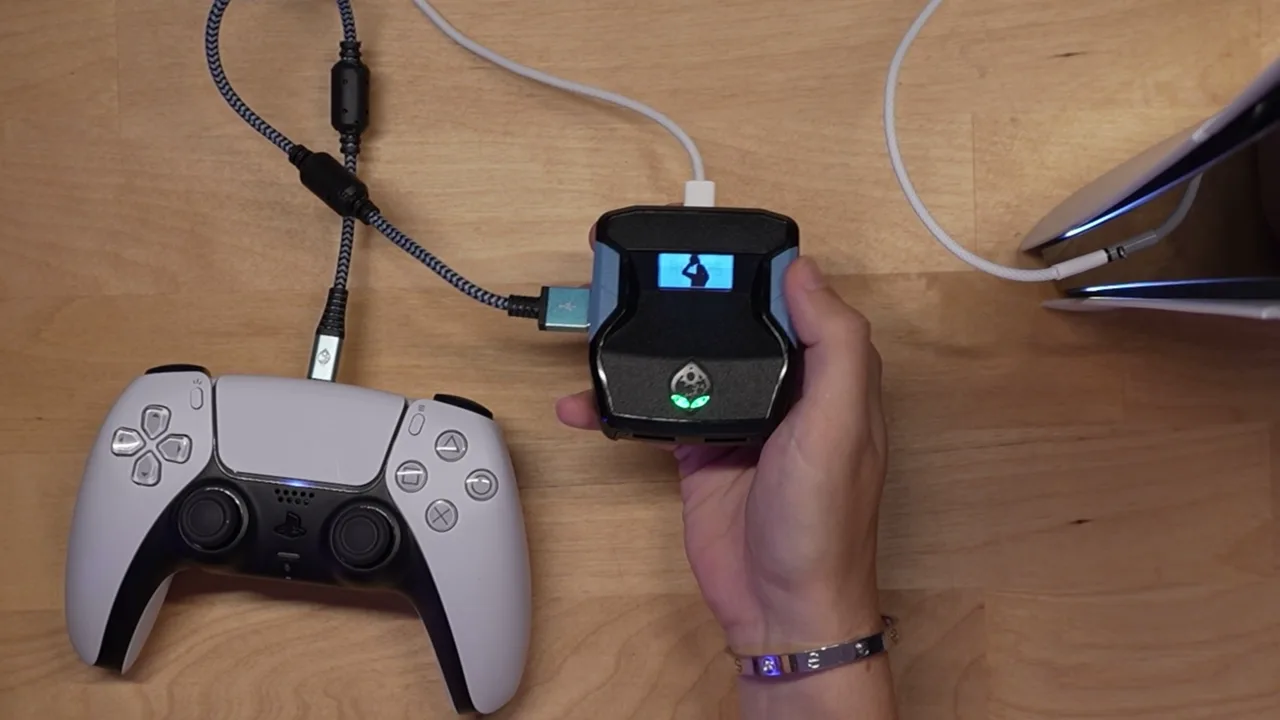
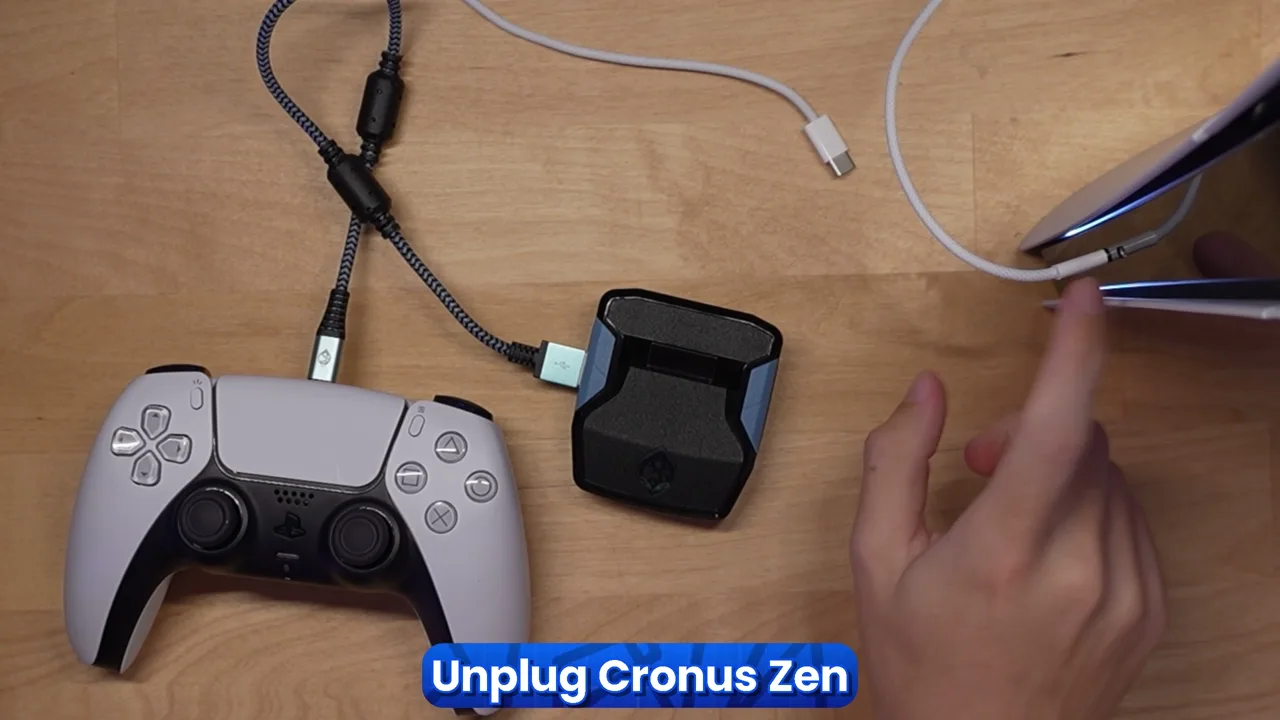
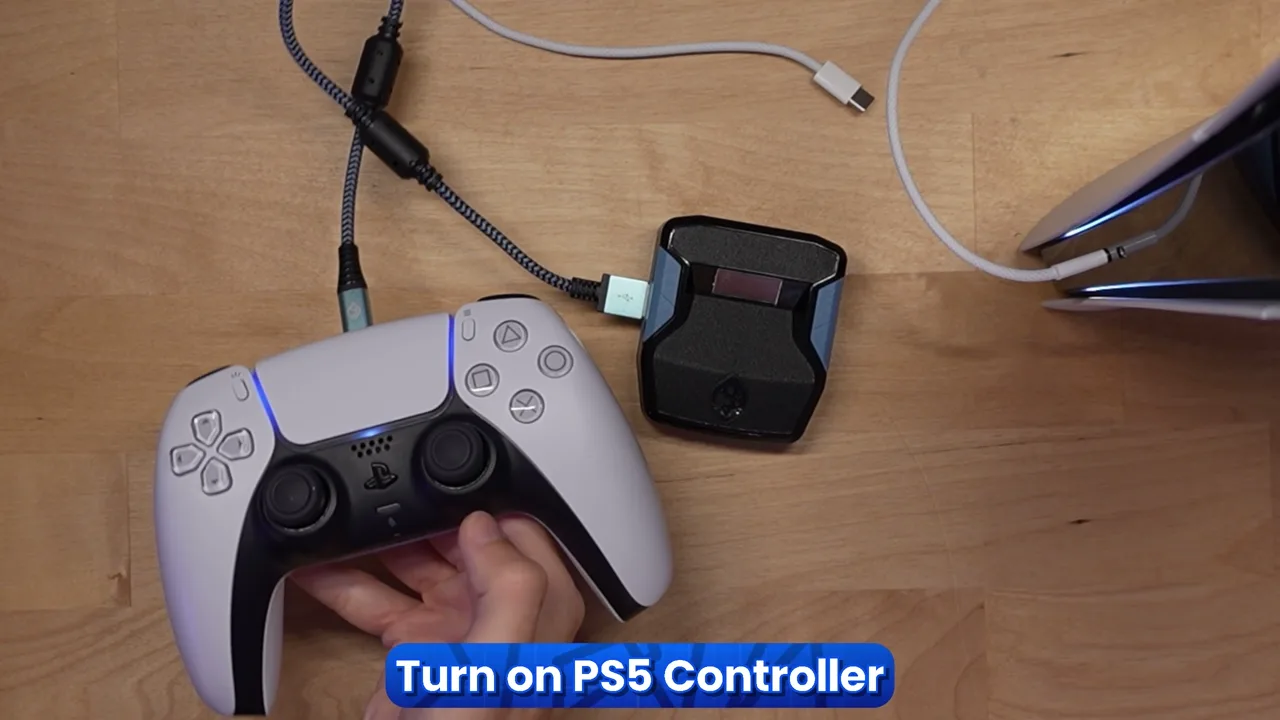
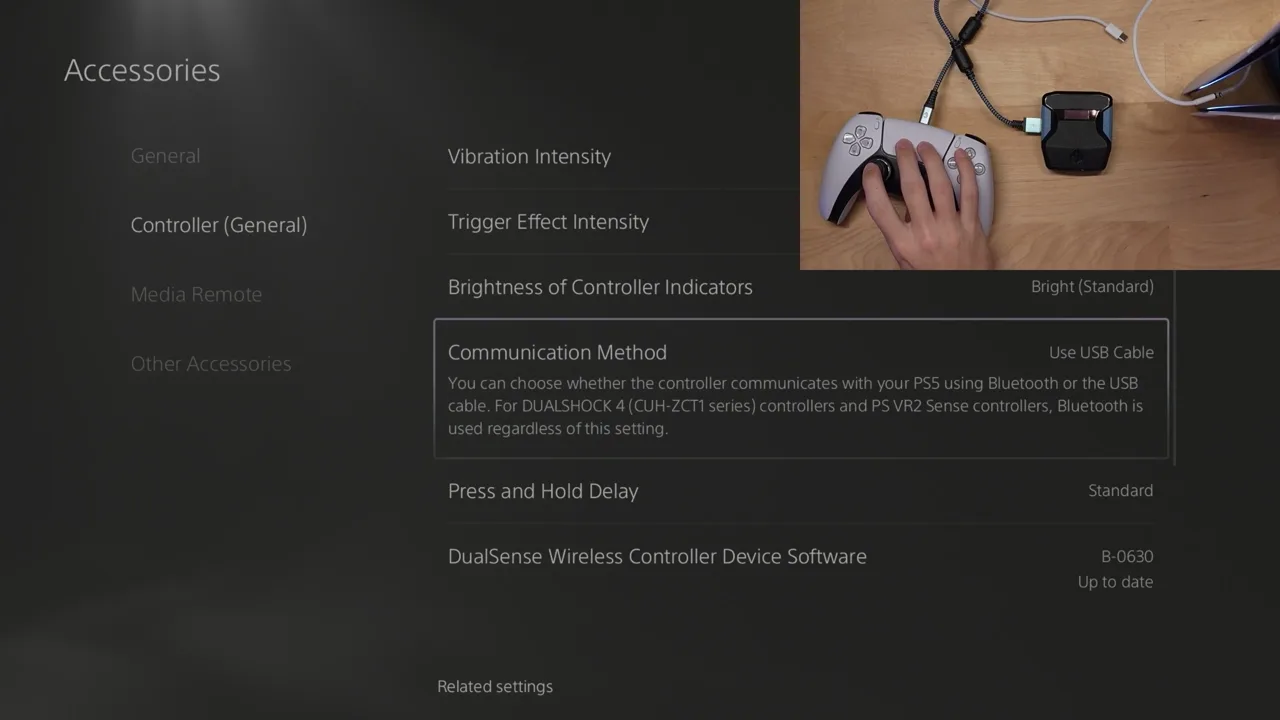
The maker's current PS5 guide treats native play as a Zen Link setup: the controller stays connected instead of dropping after a few seconds. That guide also marks the older bypass as no longer supported. DualSense and DualSense Edge are compatible pads. With Zen Link, the Edge layout in the controller notes puts the pad on A2 and Zen Link on A3. Zen Link itself is the phone app on a 2.4 GHz network, and a blue light is part of its pairing picture. PS4 is a supported older console with its own output path. Do not reuse a PS5 walkthrough on a PS4 and expect the same route.
Xbox Series X and S
Series X and Series S are the same family. Use a supported Xbox pad, a data cable, and the output protocol Studio expects for that console. Series S does not need a different script format from Series X. An Elite Series 2 is a supported pad on this family. Bluetooth is not the wireless path in the Series support table. The wireless adapter is.
Switch, PC, mouse and keyboard
Switch controllers in the maker's matrix are Bluetooth devices, not USB. Confirm the console row on the current guide before you buy a cable for a dock. Switch 2 was not confirmed on the pages checked for this course, so this lesson will not say it works. PC mode is a real mode for supported controllers on a computer. Mouse and keyboard need the MnK mode and a device the mode lists. A random keyboard in A1 is not automatically that mode.
You know the chain is alive when the OLED shows the script name and the menu opens with the file's chord. A lit device with an empty slot is not running.